Install Workbench and its npm companion for MCP inspection and application testing.
Requirements
- Chrome or desktop Firefox 140+ with the matching Workbench extension.
- Node.js 22.12+ with npm.
- An app supporting local stdio MCP.
- Browser, Node, and agent app on the same computer.
Extension 2.0.9 in both browsers pairs with companion 0.1.8, available from npm. Both store submissions await review as of October 6, 2026; check Release notes. Chrome 2.0.8 still needs companion 0.1.7 until upgraded.
Setup needs no checkout, build, Docker, account, or separate server.
Install a matching extension
Follow Getting started for installation. Check versions in chrome://extensions or Firefox about:addons.
During Chrome Store review, get the matching 2.0.9 bundle. Extract extension/lightstreamer-workbench-v2.0.9.zip and use Developer mode → Load unpacked. This tested download disables usage analytics. Copy Chrome's assigned ID; append --extension-id YOUR_EXTENSION_ID to setup.
Firefox's Mozilla Add-ons release awaits review and is not publicly installable yet. After approval, install its signed package with default setup; its permanent ID is lightstreamer-workbench@imom39a. Temporary about:debugging installs disappear at browser exit.
Set up MCP
For extension 2.0.9, run setup to download companion 0.1.8 and print version-pinned configuration:
macOS or Linux:
npx --yes lightstreamer-workbench-agent@0.1.8 setupWindows PowerShell:
npx.cmd --yes lightstreamer-workbench-agent@0.1.8 setupCopy the printed
mcpServersentry into your agent app's MCP settings. Setup does not edit them.Start that MCP server in the app.
Open Workbench on the application tab.
Ask
list_panel_sessions, select its exactpanelSessionId, then callget_status.
The app starts the pinned npm companion. Workbench connects automatically; no separate terminal or native installer is needed afterward.
Check the connection
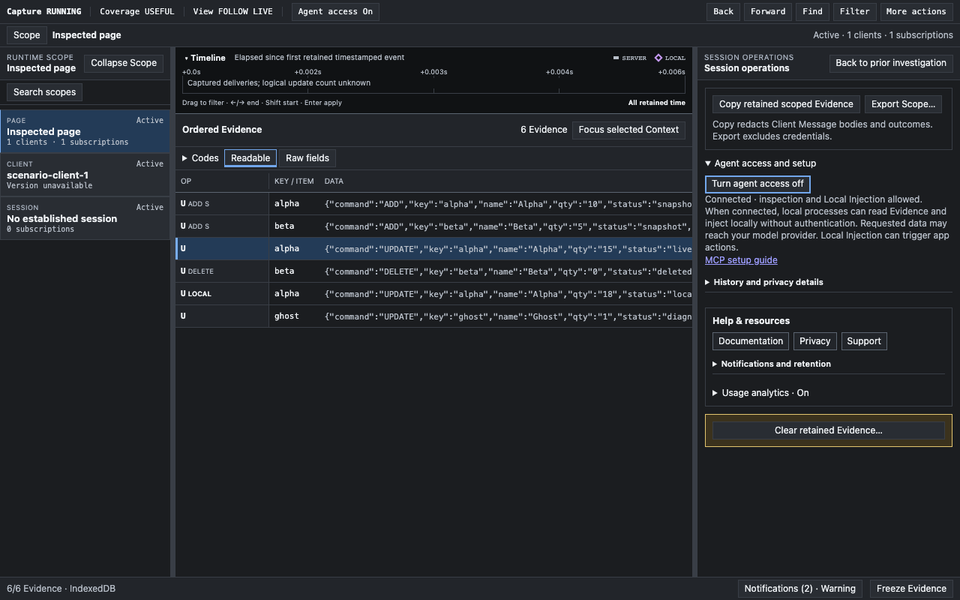
| Header | Meaning |
|---|---|
| On | Connected and ready; an agent may be inactive. |
| Waiting | Enabled; connection retries automatically. |
| Off | Disabled for this Panel Session. |
New panels enable access by default. Closing the panel ends access. The default uses 127.0.0.1:24817, authentication off.
If Waiting persists, restart the MCP server. Check an unpacked Chrome build's ID. Firefox needs companion 0.1.8+ and the approved add-on ID.
One companion handles Chrome, Firefox, and multiple Firefox profiles simultaneously. Tab numbers can collide; select the exact Panel Session. For a nonstandard profile registry, set LSEW_FIREFOX_PROFILES_DIR in the MCP environment to the directory containing profiles.ini.
When upgrading, close panels, stop MCP servers, wait 30 seconds for the old broker to exit, then restart. On Windows use Windows Node and npx.cmd if needed; restart the app after installing Node.
Work with your agent
Name the application tab. Ask for a scoped count and a few examples, then inspect Coverage. Retained counts are not active COMMAND row counts; missing Evidence does not prove absence.
Construct and validate Local Drafts or Scenarios before execution. Keep the panel visible. Do not repeat an Injection with an unknown result; read its existing outcome or trace first.
Agents can prepare Server Injection in the 2.0.9/0.1.8 pair. A person must review and approve the exact Client Message and send arguments in the panel before one send. Approval itself does not send; duplicate requests return the receipt. Never retry Unknown automatically.
Optional agent skill
The package bundles skills/lightstreamer-workbench/SKILL.md and its references. Published 0.1.8 requires copying the optional skill folder to your agent's skill directory; MCP works without it.
Combined skill installation is implemented in source and awaits the next release after 0.1.8. Once published:
npx.cmd --yes lightstreamer-workbench-agent@latest setup
Use npx on macOS/Linux. npx first retrieves the companion and its installer dependency. Accept the skill offer to use the upstream skills installer's native agent selector and project/user scope prompts. Supported targets include Codex (OpenAI), Claude Code, Kiro, Cursor, and the rest of its agent registry; you can select several. It copies the complete skill; update refreshes it alongside printed MCP configuration. The outer npx.cmd --yes leaves the skill prompts available.
For unattended installation, append --skill --agent codex claude-code kiro-cli --yes, keeping only the targets you need, and optionally --global. Kiro IDE/CLI share .kiro/skills. Repeated --agent flags also work. --json skips installation; MCP startup never prompts.
Access and data
Authentication is off. Any local process reaching the companion can use a connected panel's grant. Use a trusted development computer.
Requested Evidence may reach your model provider. Do not share secrets. Client Message bodies are redacted in agent results. Local Injection calls application listeners and may cause app actions. Agents cannot clear history or run arbitrary page code.
Firefox requires installation consent for application-data sharing. Turn Agent access Off per panel to revoke it. Analytics starts Off with separate optional native consent.